Analyze Your Website and Generate SEO Reports
Overview
This step-by-step walkthrough demonstrates how to use 42crawl to analyze your website and generate comprehensive SEO reports.
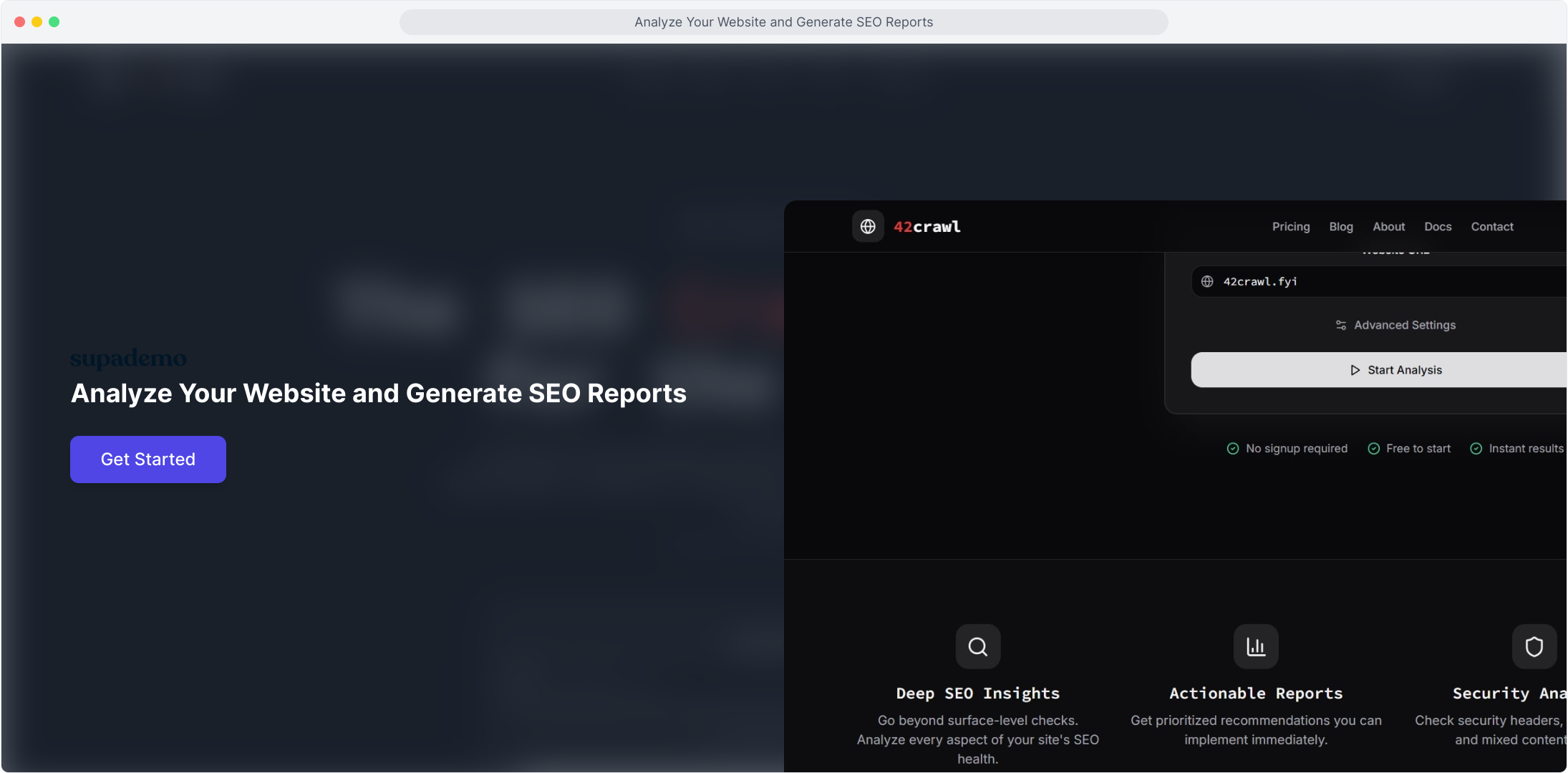
Step 1: Analyze Your Website and Generate SEO Reports
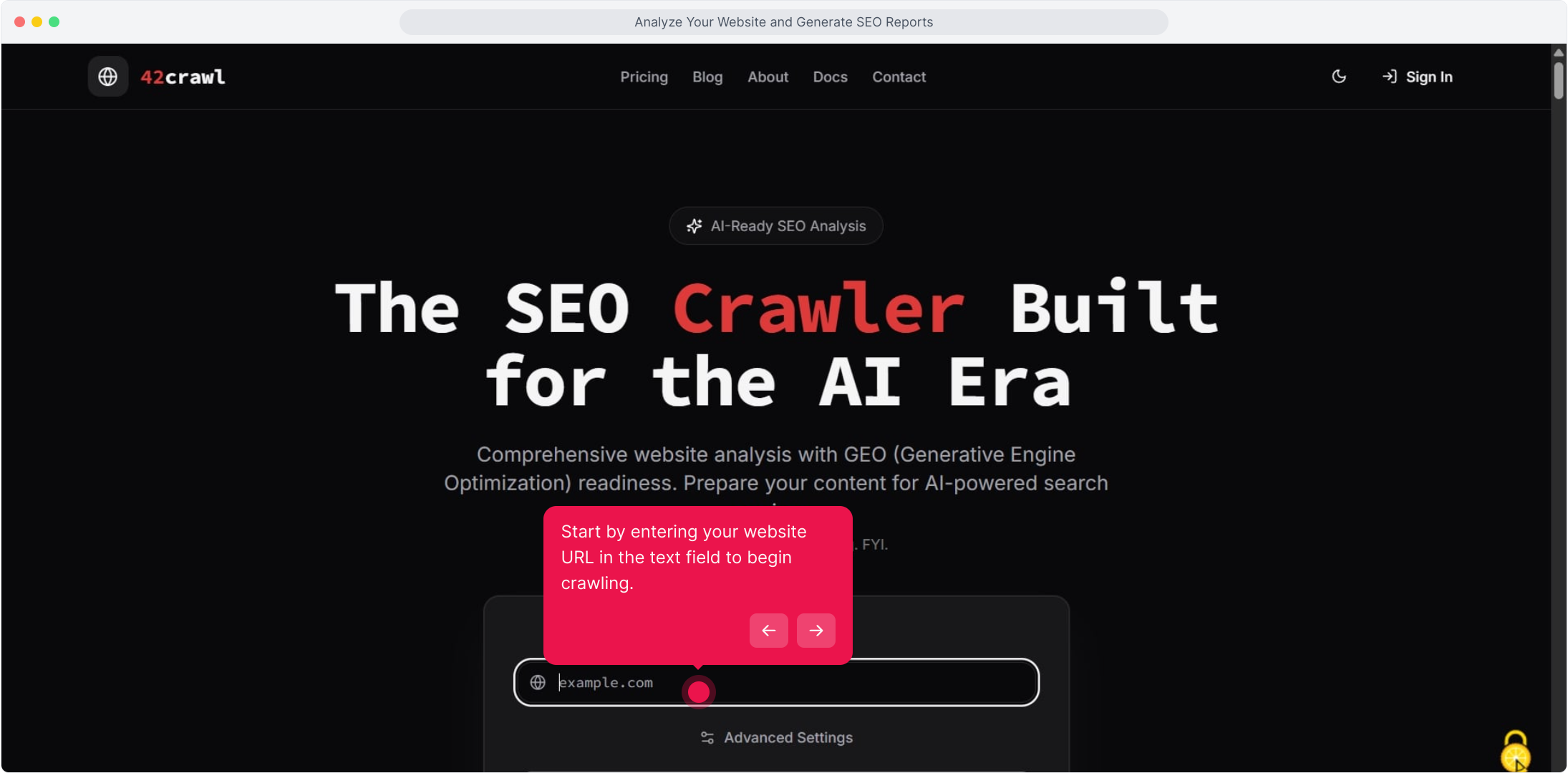
Step 2: Start by entering your website URL in the text field to begin crawling.
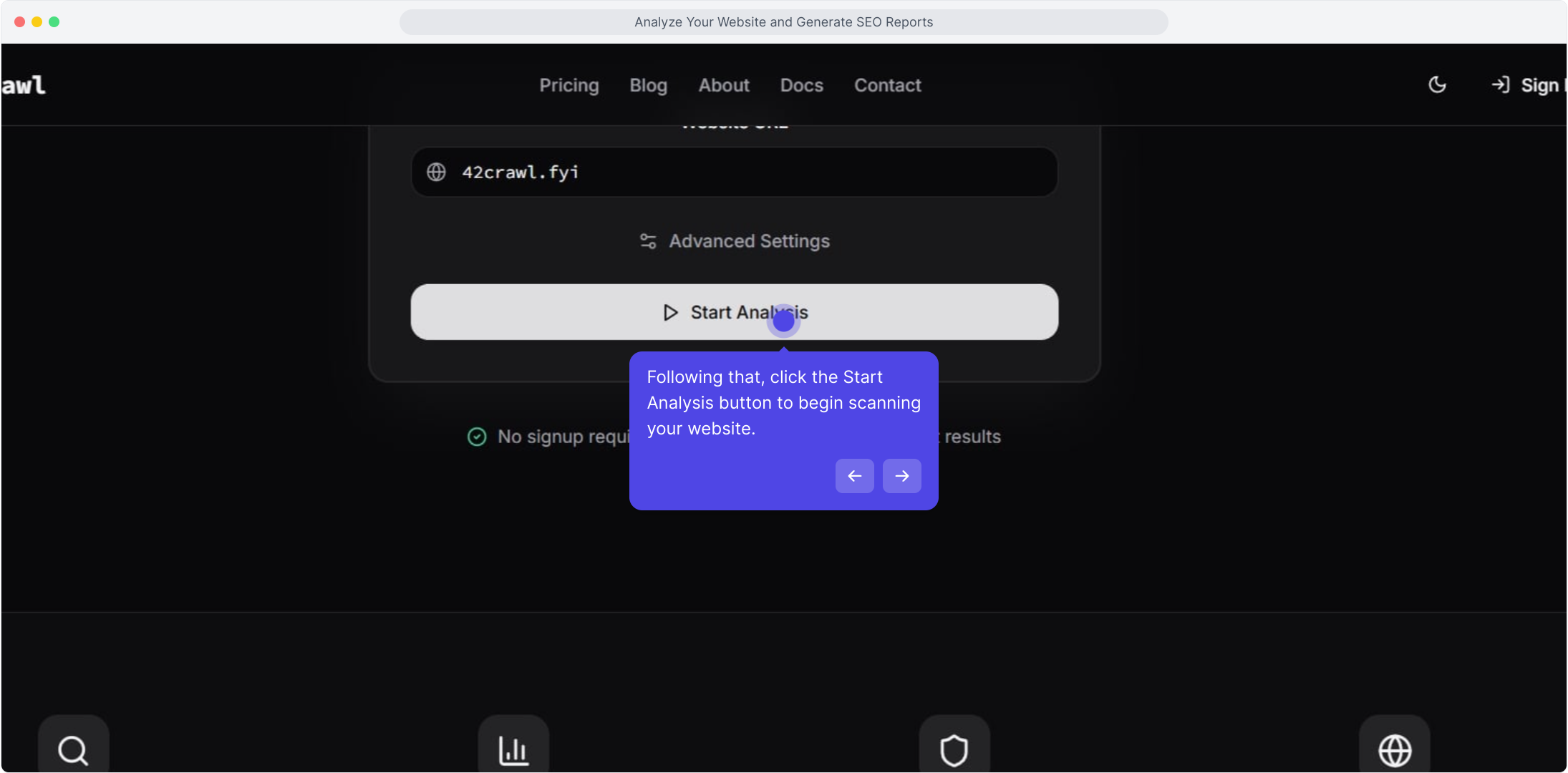
Step 3: Following that, click the Start Analysis button to begin scanning your website.
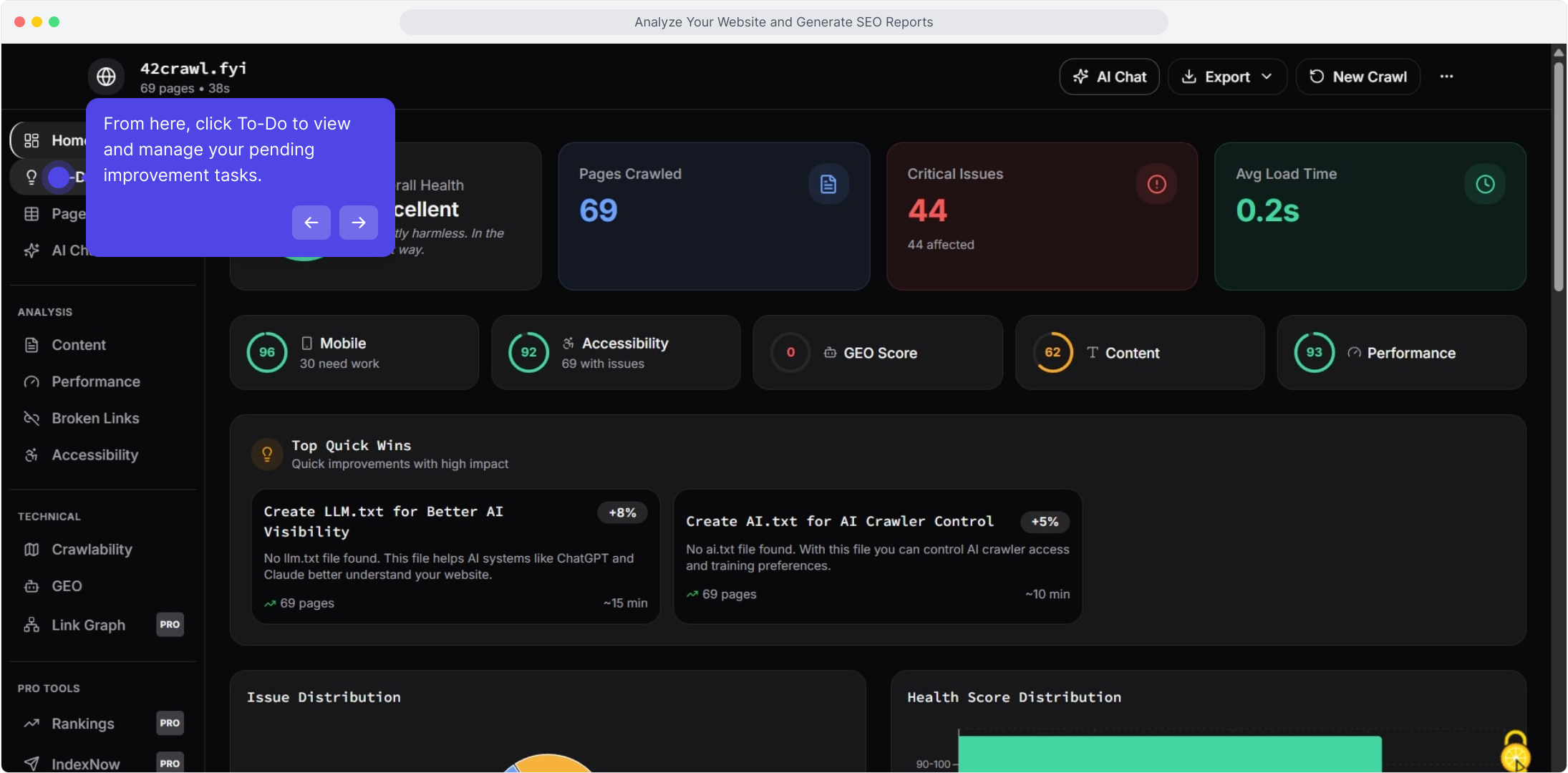
Step 4: From here, click To-Do to view and manage your pending improvement tasks.
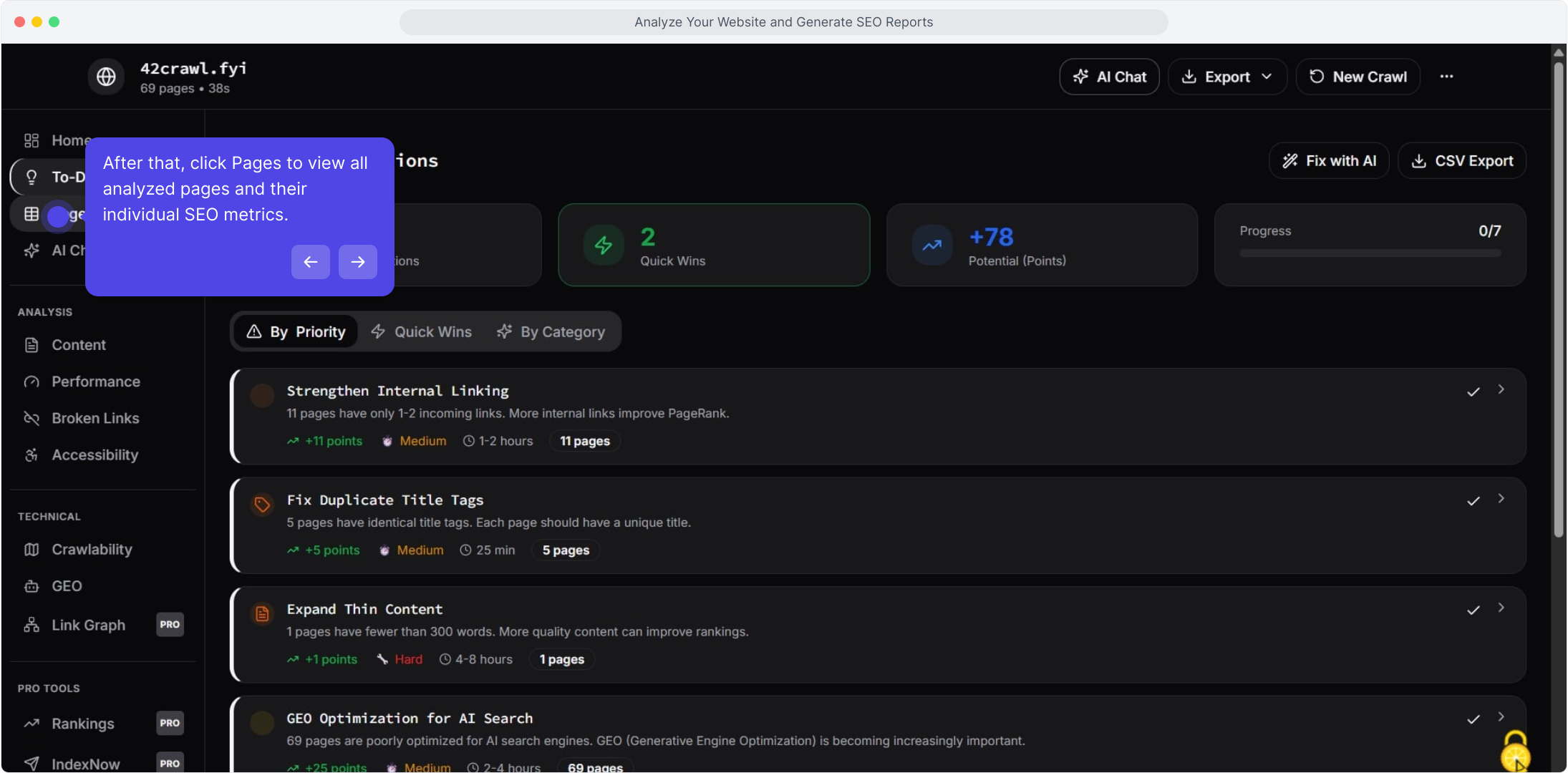
Step 5: After that, click Pages to view all analyzed pages and their individual SEO metrics.
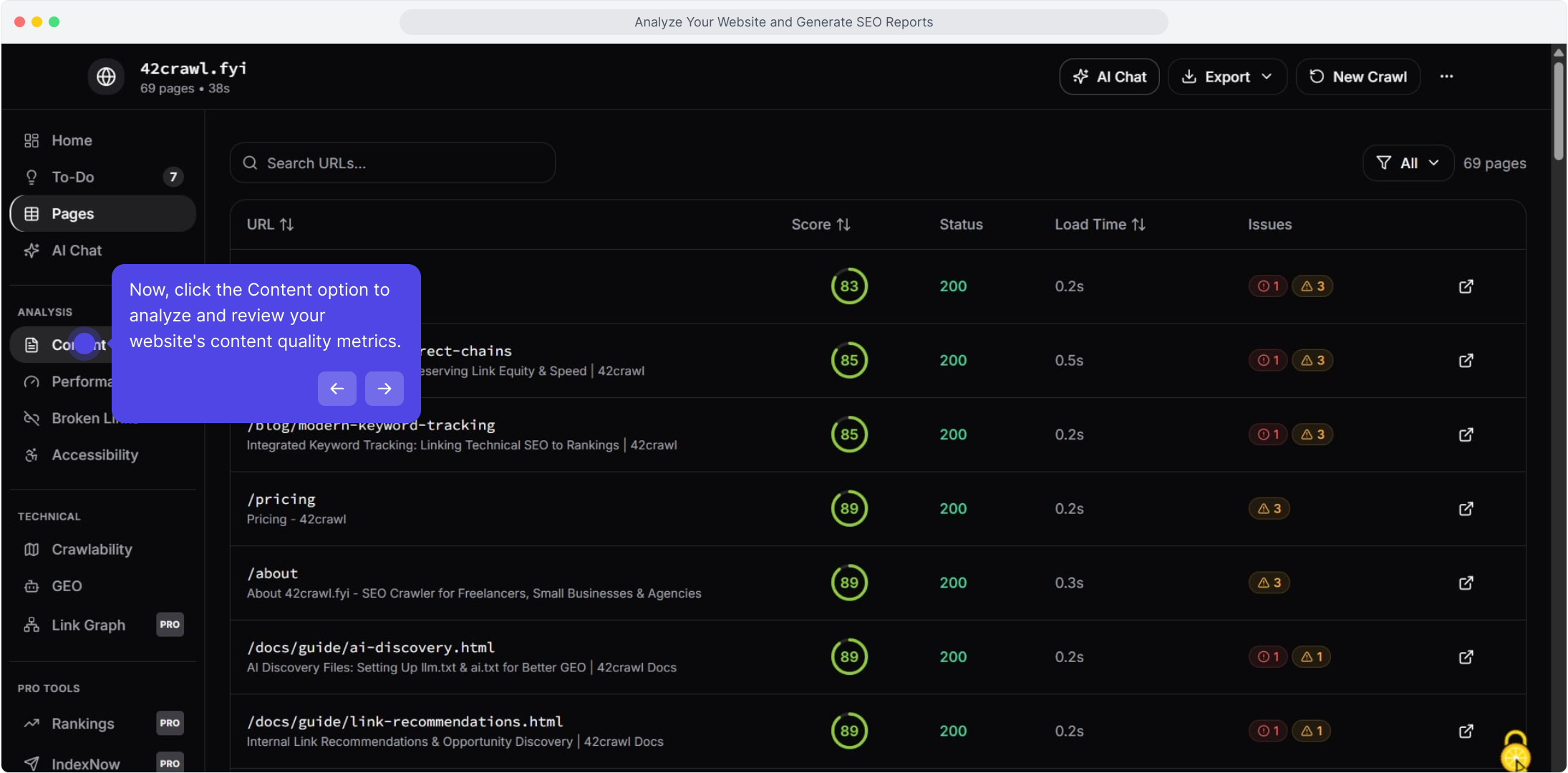
Step 6: Now, click the Content option to analyze and review your website's content quality metrics.
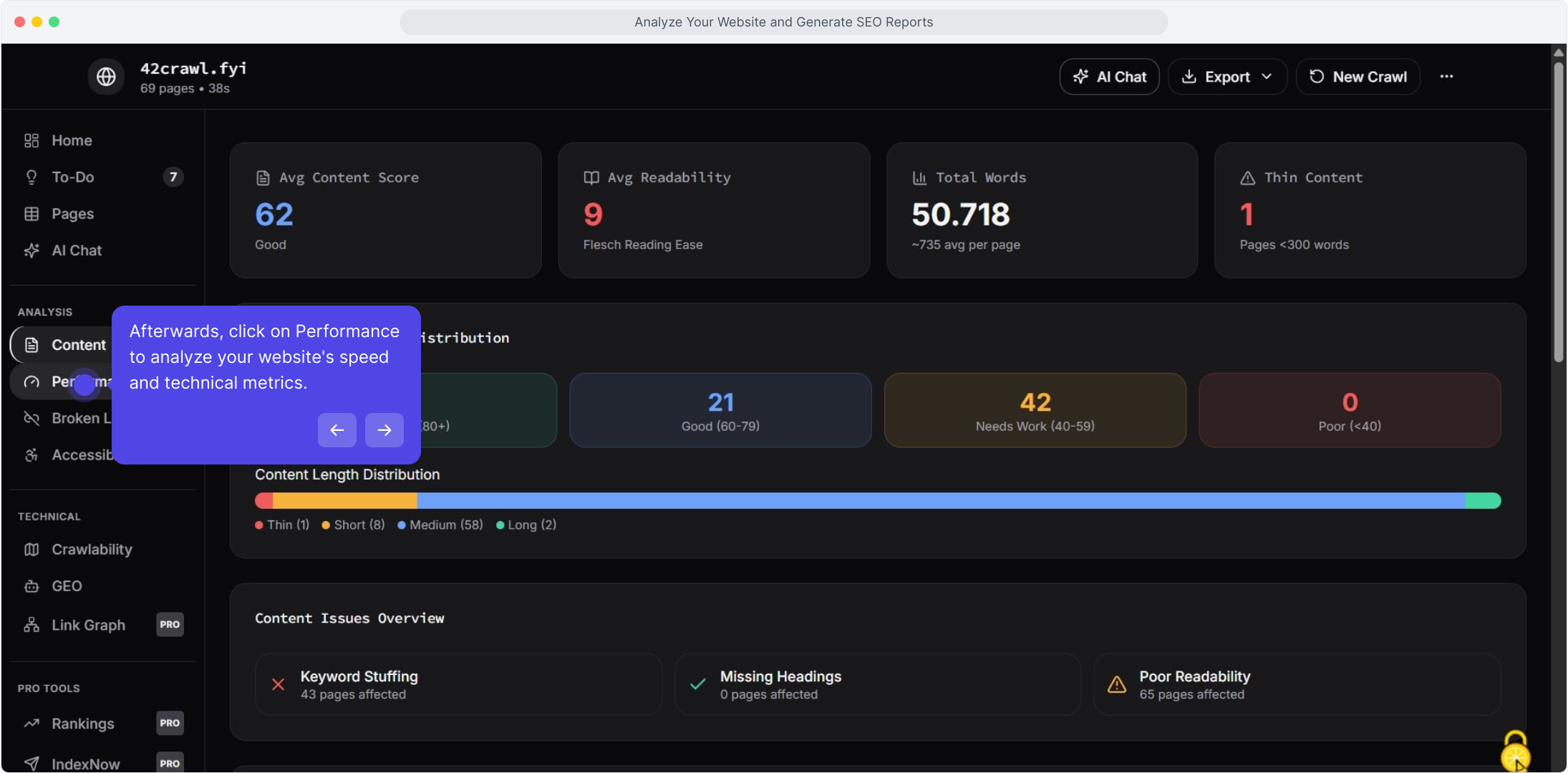
Step 7: Afterwards, click on Performance to analyze your website's speed and technical metrics.
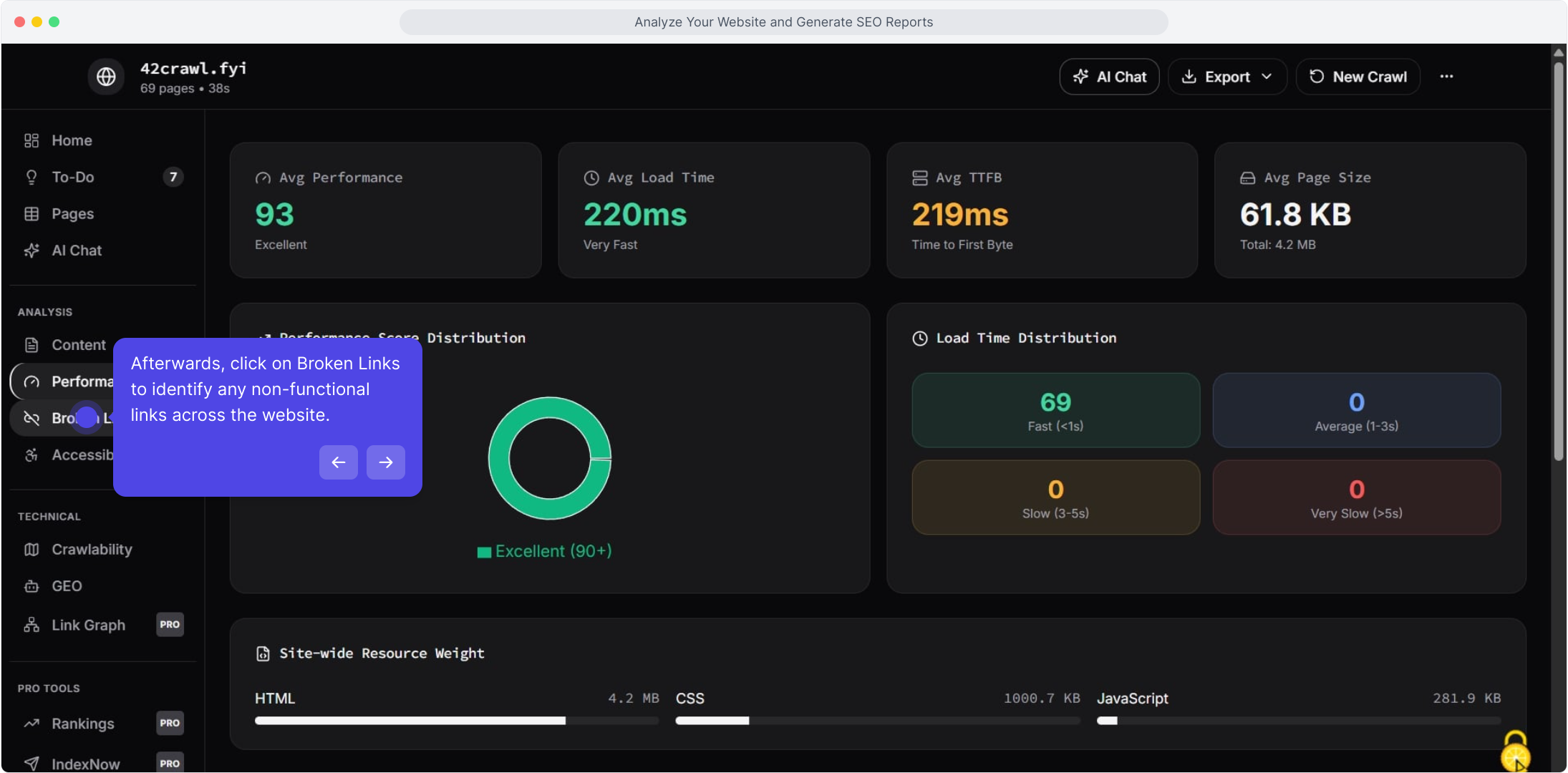
Step 8: Afterwards, click on Broken Links to identify any non-functional links across the website.
Step 9: Afterwards, click the Accessibility menu option to review and analyze accessibility standards.
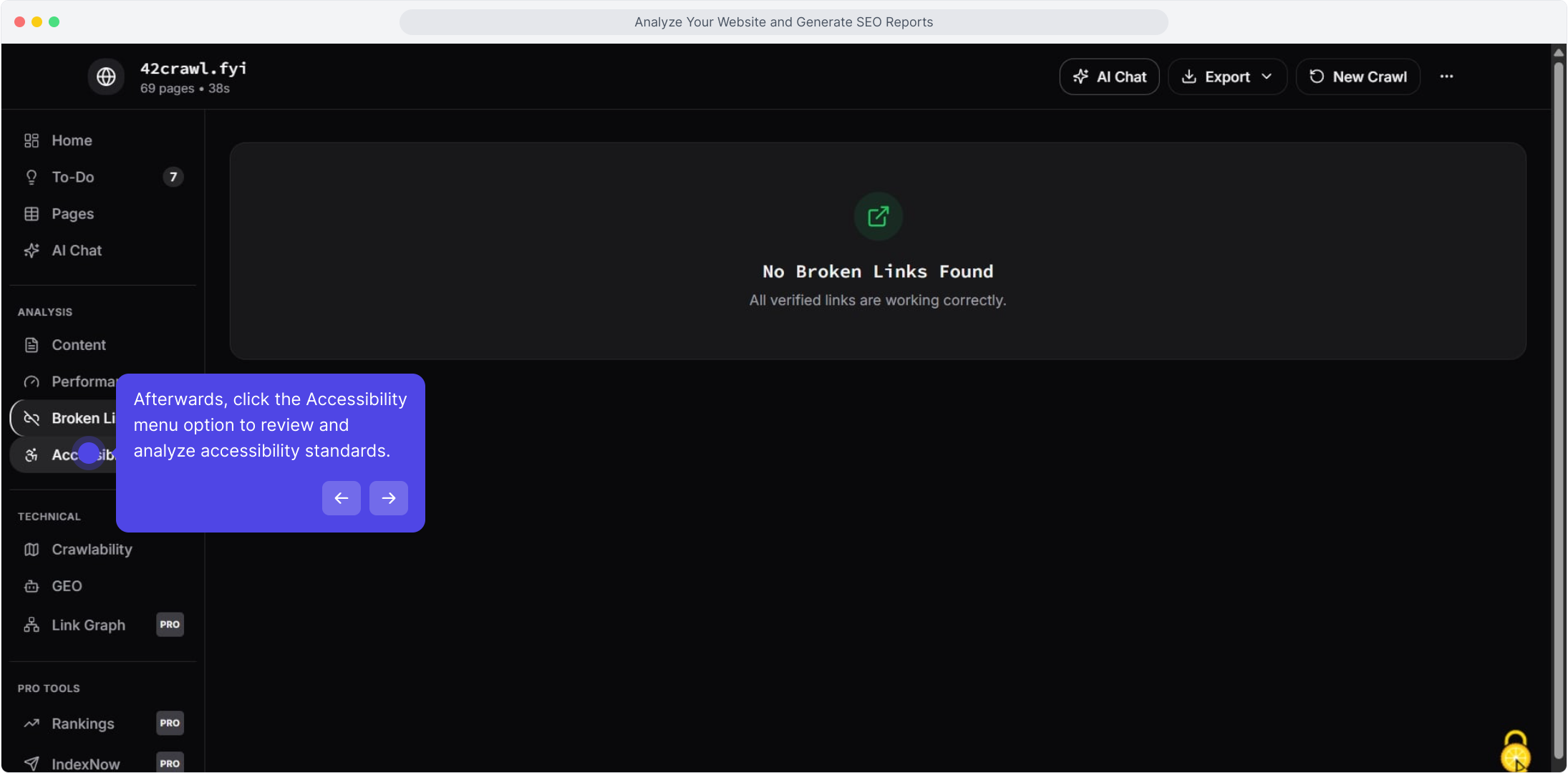
Step 10: Then, click on Crawlability to view the technical crawlability analysis metrics.
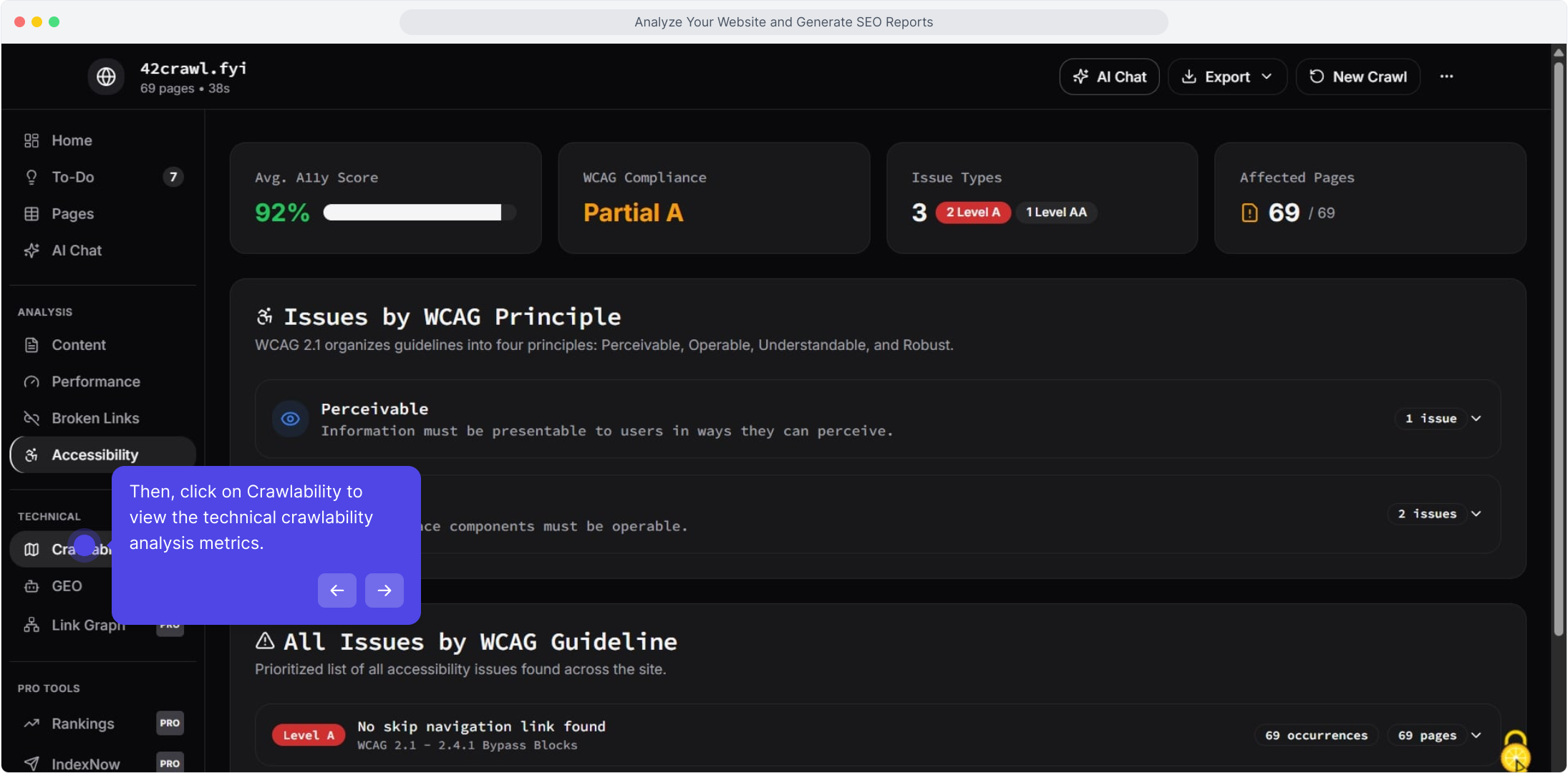
Step 11: Then, click on GEO to view Generative Engine Optimization and AI crawl data insights.
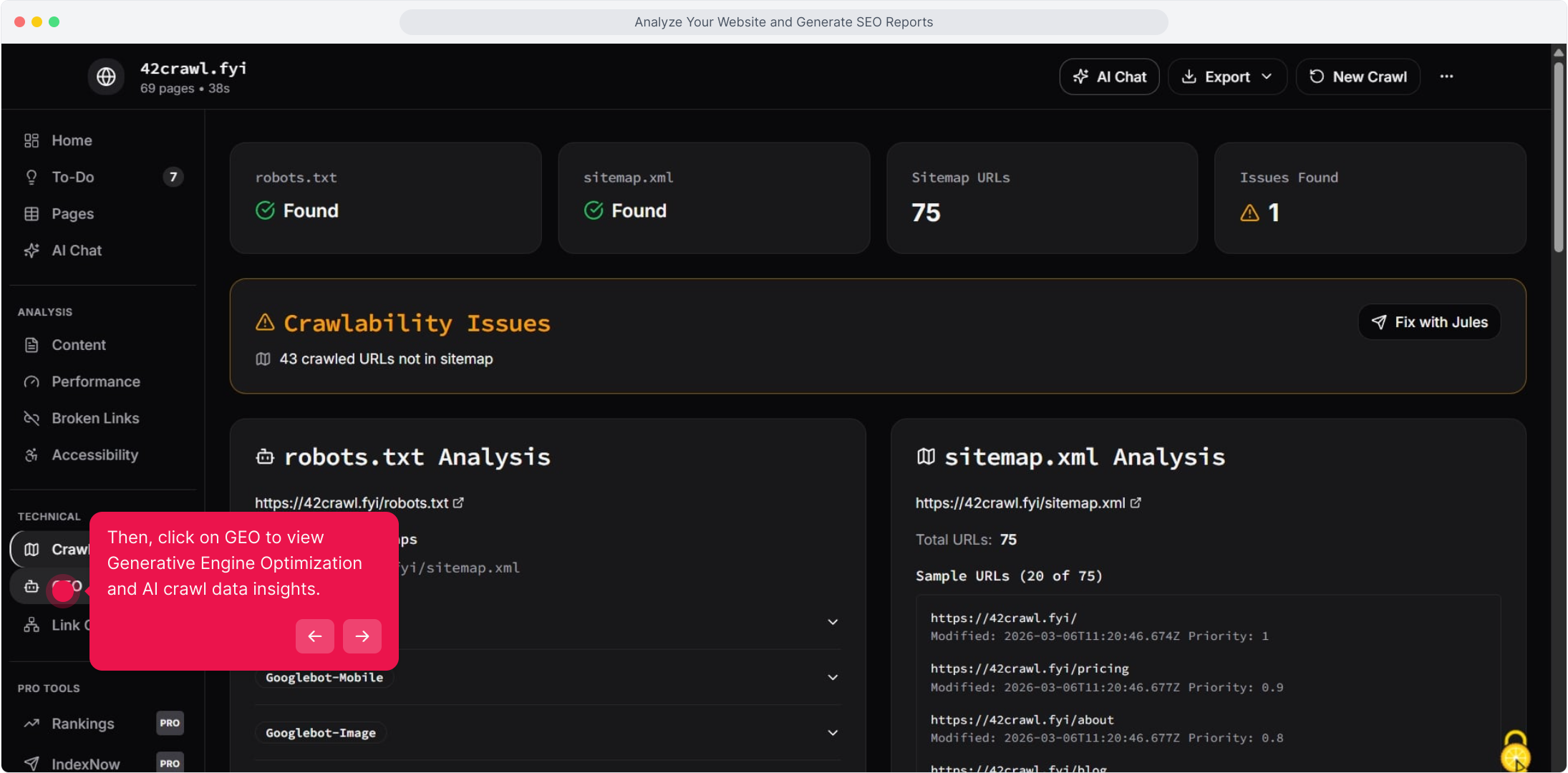
Step 12: Next up, click the Home button to return to the main dashboard overview.
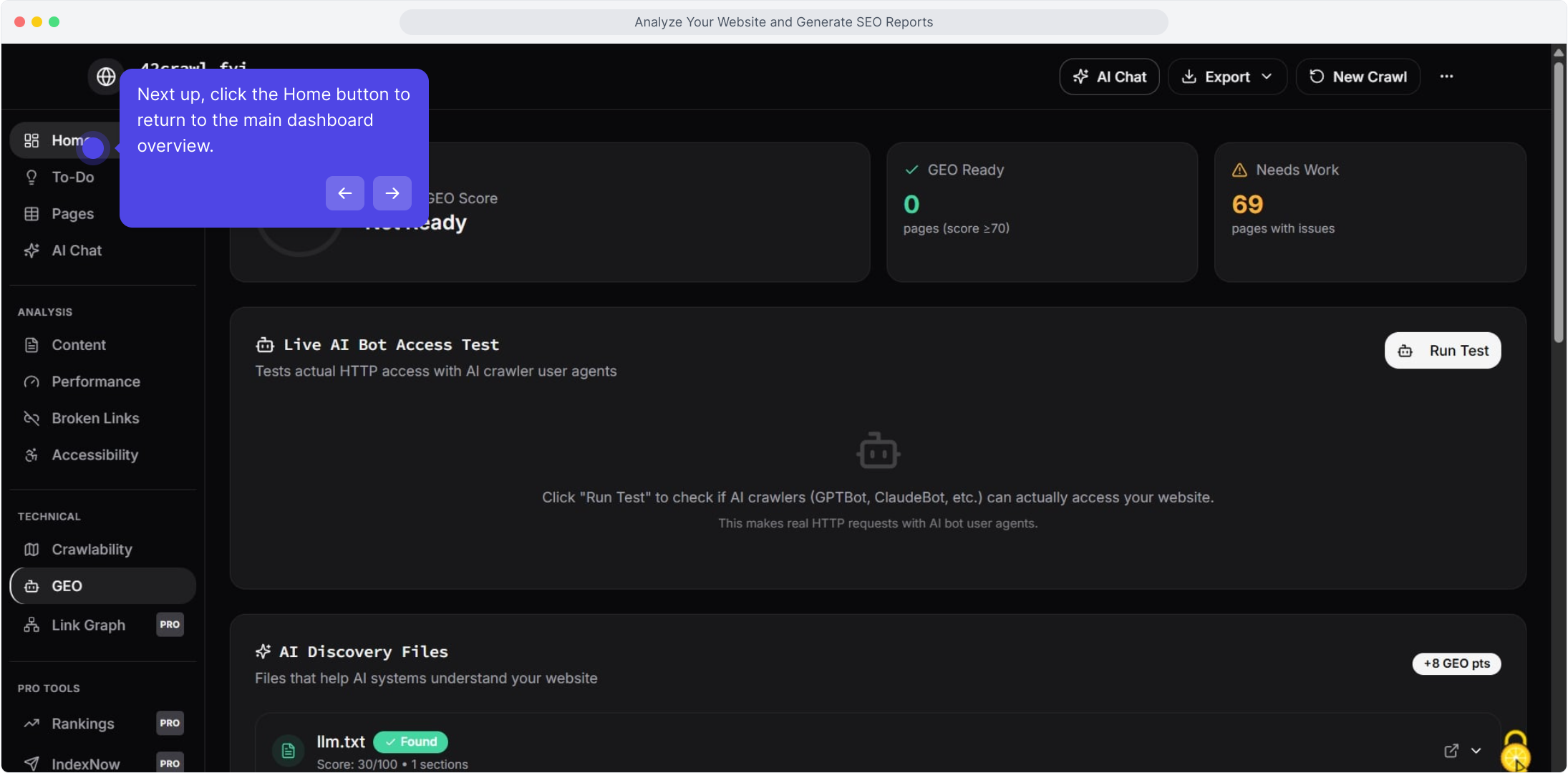
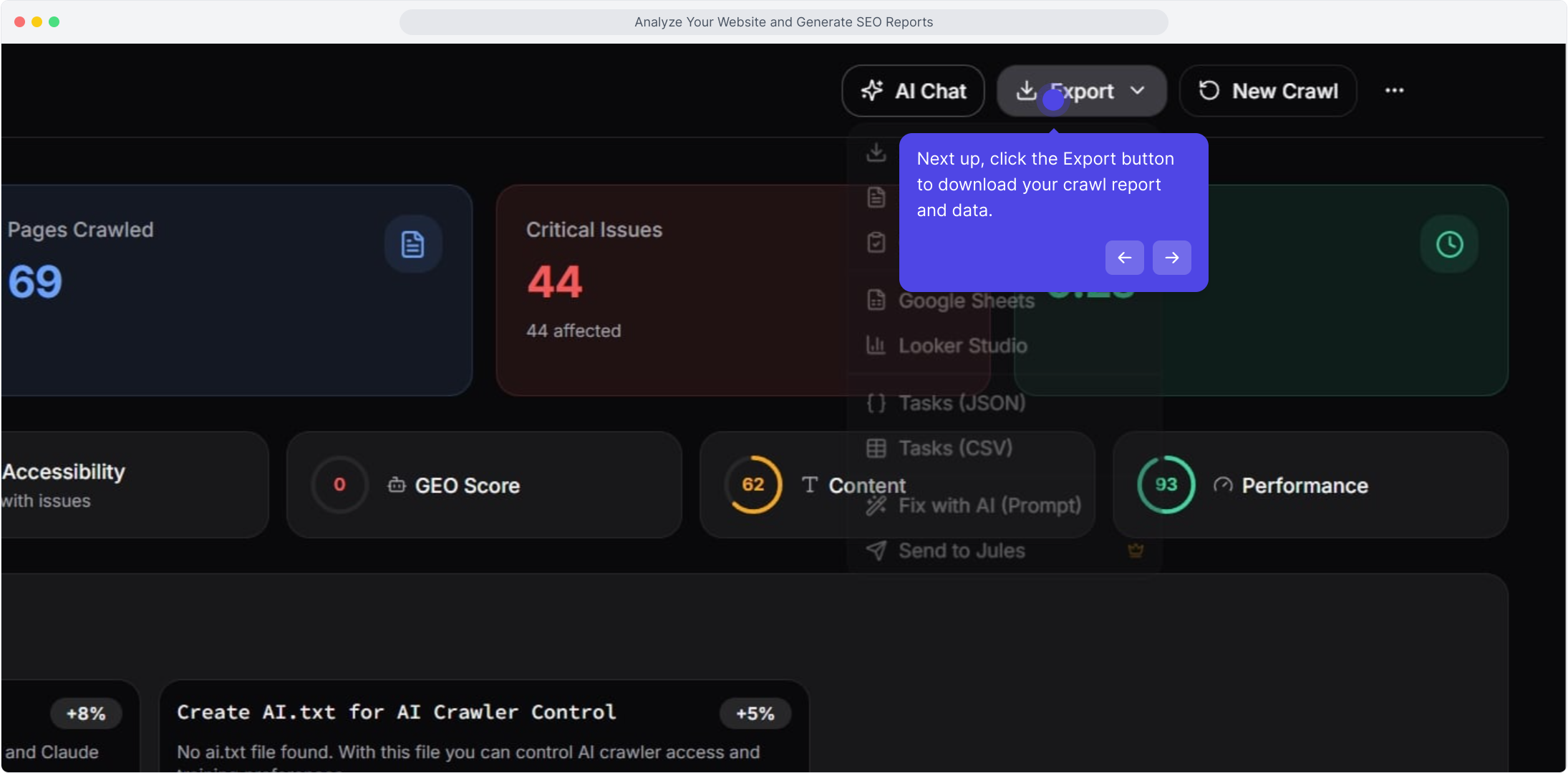
Step 13: Next up, click the Export button to download your crawl report and data.
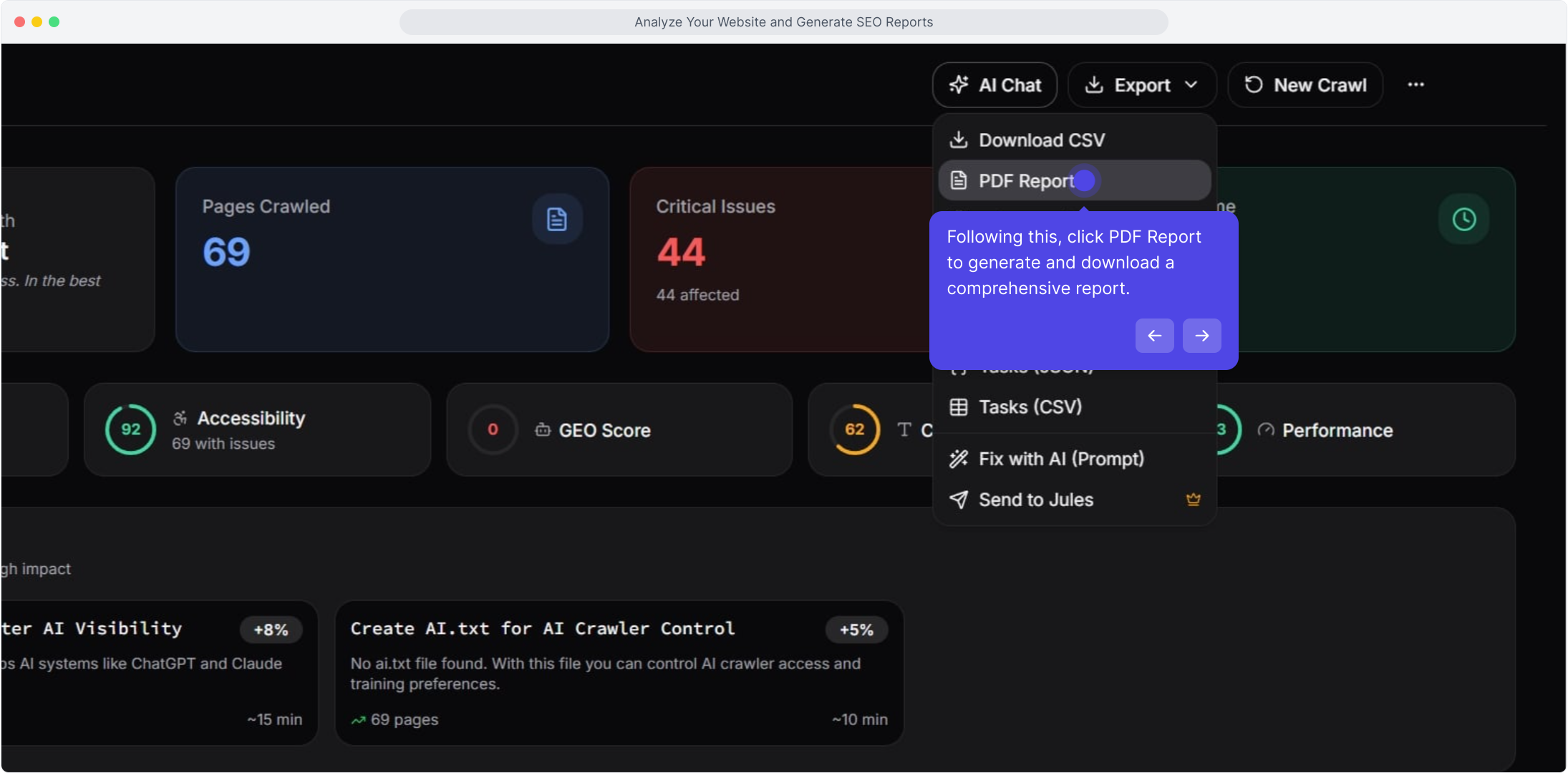
Step 14: Following this, click PDF Report to generate and download a comprehensive report.
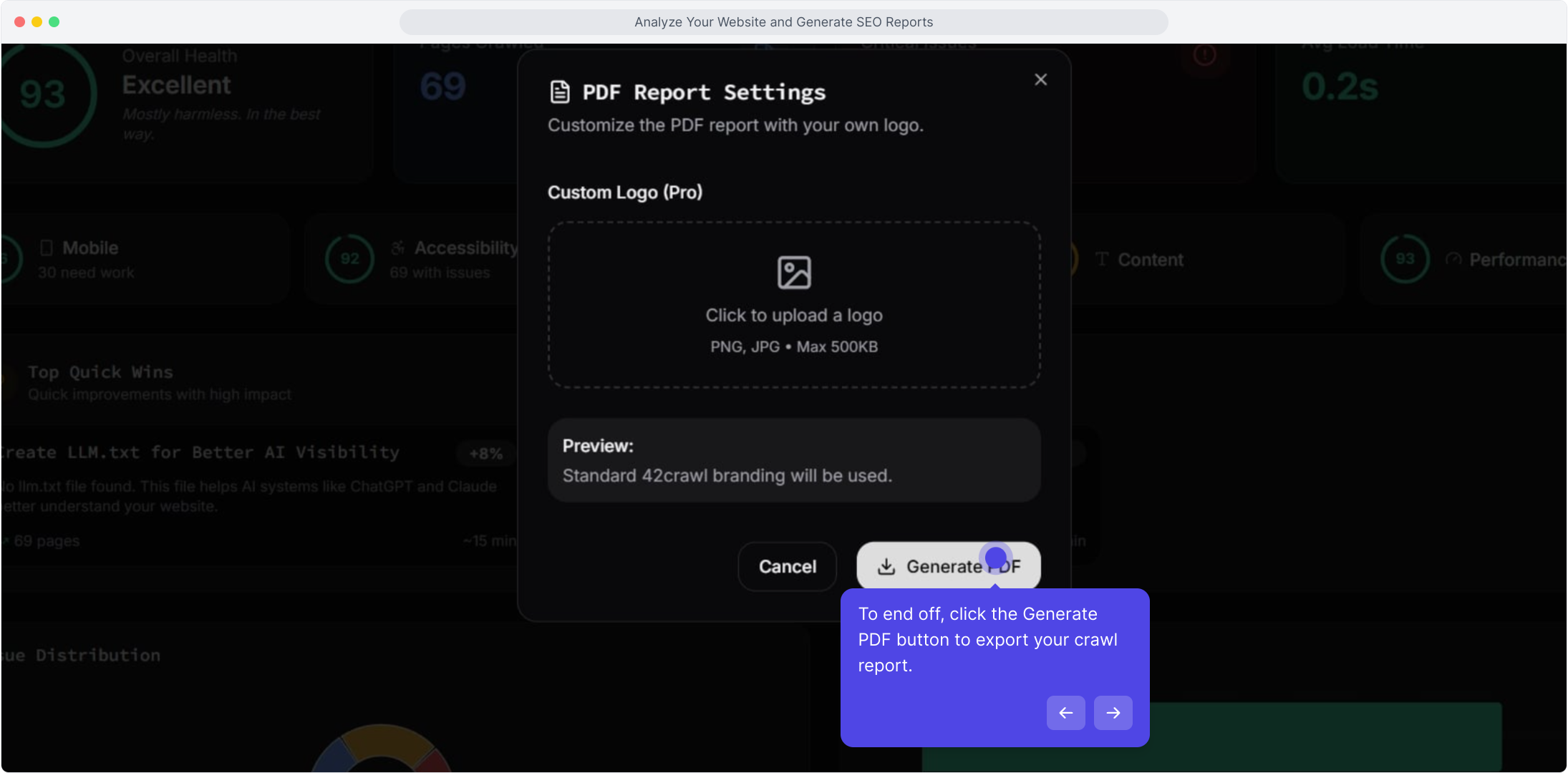
Step 15: To end off, click the Generate PDF button to export your crawl report.
Step 16: Enjoyed the guided demo?
Additional Resources
For more information about 42crawl features and functionality, check out our other documentation sections.
View Original Demo - Created with Supademo